Tap to Pay

Take in-person credit card and mobile wallet payments with your phone - no card reader required. It’s quick, easy, and secure.

Get started
Hand holding smartphone displaying a contactless payment screen for £50 at Beauty Center.
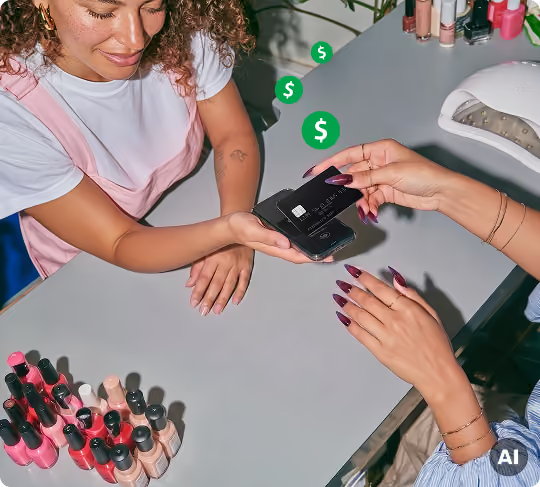
Person holding a smartphone displaying a £50.00 payment confirmation screen while another hand holds a contactless credit card near the phone.

Get paid in one tap

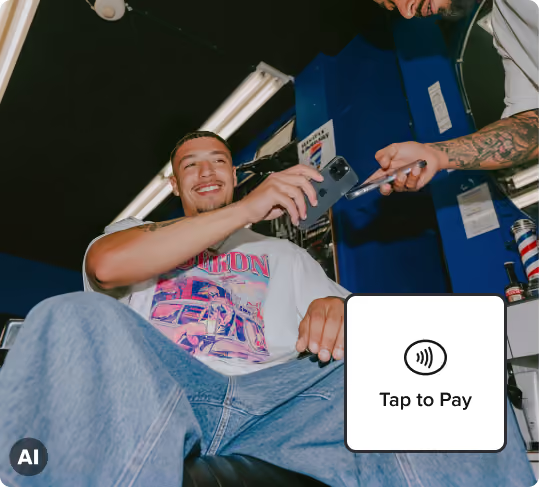
Just select Tap to Pay as the payment method, and have Clients tap their contactless card or digital wallet to your phone. You're paid in seconds - one tap is all it takes.
  • Quick and free setup
  • Just 0.99% + 0.20 GBP + VAT per transaction
  • No extra card reader costs
  • Free next day payouts
  • Fast Payouts - money in 30 minutes for a 1.5% fee
Get started
Smiling woman with curly hair wearing a white top next to a contactless payment icon labeled 'Tap to Pay'.

Convenient, lightning fast checkout

With Tap to Pay, Salon Bergler's checkout process has never been smoother.

Smiling woman with brown hair getting a haircut from a stylist wearing a black shirt and silver watch.

The easiest way to take contactless payments

02

Get paid in seconds

After an appointment, just ask your client to tap their card or digital wallet to the contactless symbol at the top of your phone.

03

Secure transactions

Tap to Pay payments are highly secure to protect you and your clients. Card numbers are not stored on your device after processing.

01

No card reader required

Your phone is now all you need to take payments. No need to purchase or carry a card reader.
Learn more

Setup is quick and easy

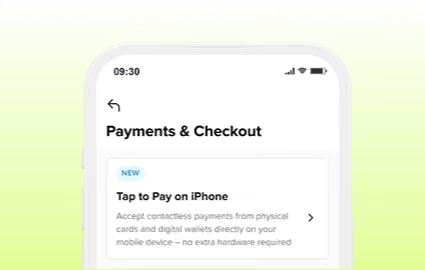
iPhone screen showing Payments & Checkout with Tap to Pay feature for contactless payments using physical cards or digital wallets.

Activate Tap to Pay

In the Booksy Biz app, navigate to Settings > Payments & Checkout > Tap to Pay.

Get started
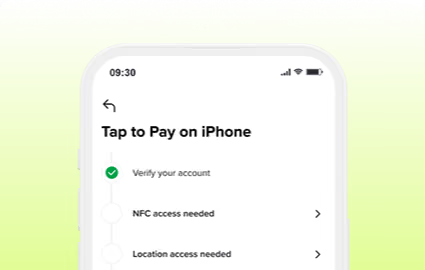
iPhone screen showing setup steps for Tap to Pay feature, with account verification completed and NFC and location access needed.

Verify your account

Enter a few business details to start processing transactions through Stripe. Next, you will be prompted to enable NFC and Location Services.

What do I need?
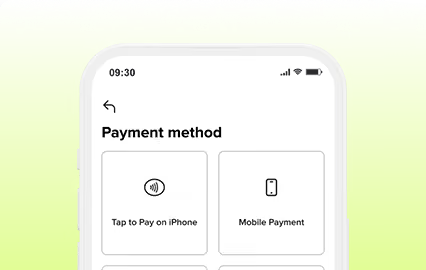
Mobile screen showing a payment method selection with options: Tap to Pay on iPhone and Mobile Payment.

Get paid

You’re ready to Tap! Select Tap to Pay as the payment method, and have clients tap their card or phone to the contactless symbol at the top of your phone. That's it!

Tap to Pay FAQ